A Starting Soon screen needs to tell a viewer that the stream is about to begin. Put that message first, add the event or channel name underneath, and leave the rest of the frame for atmosphere. Treat it as its own scene so you can check what viewers will see and hear before you switch to the game.
Make the message work in a small player
The Northglass Relay example uses a 1920 × 1080 canvas with “STARTING SOON” as its largest line. “Northglass Relay practice night” explains the event in smaller type. The pale words stay on the dark side of the composition, while the angled shapes sit away from them. In the early version, a large countdown takes over the frame. A fixed countdown in a static image will still show the same time when someone arrives a minute later.
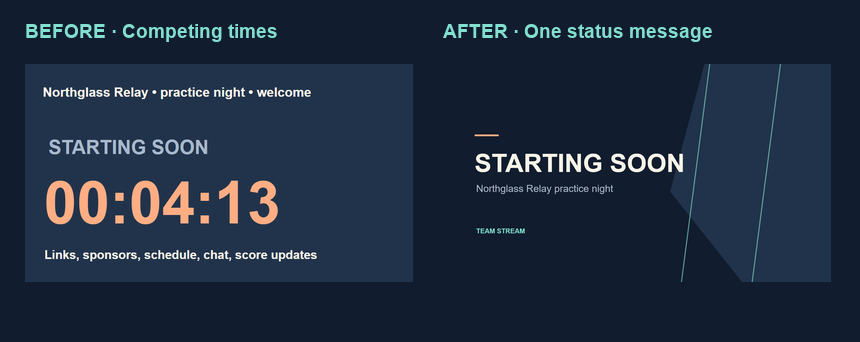
Edit the message layer in the SVG and export a clean PNG. Test the title at a quarter of its design size. If the event name becomes illegible, shorten it or raise its weight before adding more text. If you need a real countdown, add it as a separate source and define how it resets when you leave or re-enter the scene. The workshop export is for a static waiting scene.
Build a separate scene in OBS
Create a scene called Starting Soon. In Sources, add the PNG as an Image source and check that it fits the entire base canvas. Use Fit to Screen if the picture was moved or resized. If you add a timer or event label, position that source above the image. Check the Audio Mixer to see what is active. Your holding music and microphone should follow an explicit audio plan, including what happens when you switch away.
For a moving background, place your own video in an OBS Media Source. Decide separately whether it should loop and whether it should restart when the scene becomes active. Re-enter the scene and watch at least one loop to check the cut and legibility. Keep a title plate or the static export handy in case the motion makes the message hard to read.
Rehearse the first transition
In Studio Mode, preview the game scene and look at its camera and HUD before you bring it into Program. Run a local recording of the wait screen and switch. Watch for a gap between scenes, unexpected microphone audio or a timer that starts again at the wrong moment. Stop and restart the rehearsal if the programme sound changes with your scene rules.
The waiting slate and gameplay overlay have different jobs. Keep the game’s open viewing areas in the gameplay scene. If alerts are meant to appear during the wait, test their event placement and audio there as a separate alert decision.